# Google Classroom

# Getting Started with Google Classroom

##### **What is Google Classroom?**

Google Classroom is your online hub for everything that goes on in your lessons and with your students. It’s a place where you can add, assign, review, and grade assignments. You can set homework or activities, share resources and links, as well as communicate with your students and parents.

##### **Educational uses of Classroom**

- Share assignments with your students.
- Start a discussion with your students, giving them a space to reply to you and each other.

##### **Where is Google Classroom?**

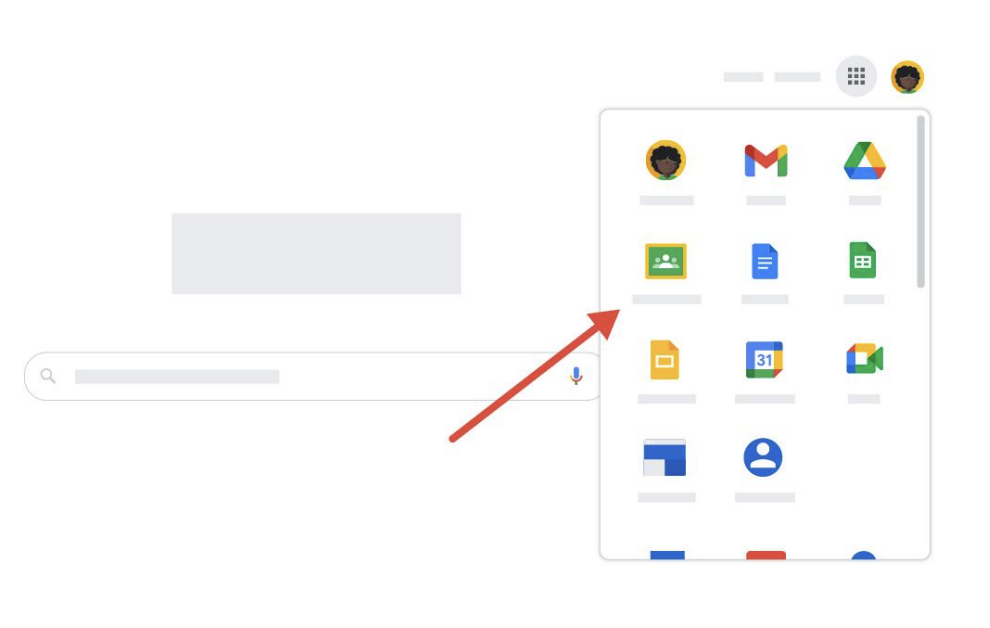
You can go to Google Classroom by clicking the App Launcher and finding Classroom.  
Remember that the exact location within the App Launcher may vary:
![Screenshot 2024-07-30 at 10.29.47 AM.png](https://wiki.mdy.org/uploads/images/gallery/2024-07/scaled-1680-/Z5VfZojkOrc4S7YA-screenshot-2024-07-30-at-10-29-47-am.png)

Alternatively, you can go to [classroom.google.com](https://wiki.mdy.org/classroom.google.com "Google Classroom").

# How to Rename a Google Classroom

1. After accepting the class, from the Google Classroom homepage, click the **3 dots** next to the course title.  
      
    <span id="bkmrk-" style="font-weight:normal;"><span style="font-size:11pt;font-family:Arial, sans-serif;color:rgb(0,0,0);background-color:transparent;font-weight:400;font-style:normal;font-variant:normal;"><span style="border-width:initial;border-style:none;display:inline-block;overflow:hidden;width:499px;height:189px;">![AD_4nXePbwNmTpG11vvzSujoCDCgf0k8o64qhIAd9JFc1UHuFDT94bOqX6pxVLaoTzdqp_4f-SDhC8GA4c7uEykR6VvcHt9m37M2g9T2WMzEAAEVJ4AVQLSvn5j9UEuSNtzoPyEal-swM6t3vdG-EUOSG-jFt2mr?key=pdC7Fbx-JMTmx6rMOkWSSQ](https://lh7-rt.googleusercontent.com/docsz/AD_4nXePbwNmTpG11vvzSujoCDCgf0k8o64qhIAd9JFc1UHuFDT94bOqX6pxVLaoTzdqp_4f-SDhC8GA4c7uEykR6VvcHt9m37M2g9T2WMzEAAEVJ4AVQLSvn5j9UEuSNtzoPyEal-swM6t3vdG-EUOSG-jFt2mr?key=pdC7Fbx-JMTmx6rMOkWSSQ)  
      
      
    </span></span></span>
2. Click “**Edit.”**  
    <span id="bkmrk--1" style="font-weight:normal;"><span style="font-size:11pt;font-family:Arial, sans-serif;color:rgb(0,0,0);background-color:transparent;font-weight:400;font-style:normal;font-variant:normal;"><span style="border-width:initial;border-style:none;display:inline-block;overflow:hidden;width:250px;height:206px;">![AD_4nXeMEXrvYIIovRE3vHOQQh1bzJ5tOO1jDrk6g8T5XT4KheQIVVa2JclER52Kqo-L9tNbi5N3lyqUgL5ck3aYvcXPwL3I62LXzIHnOy3lEmf3NzSGaGqYYZHFN9TgzJJk1JNG64Pm7a3bJl3aS5lEu1TlLVyK?key=pdC7Fbx-JMTmx6rMOkWSSQ](https://lh7-rt.googleusercontent.com/docsz/AD_4nXeMEXrvYIIovRE3vHOQQh1bzJ5tOO1jDrk6g8T5XT4KheQIVVa2JclER52Kqo-L9tNbi5N3lyqUgL5ck3aYvcXPwL3I62LXzIHnOy3lEmf3NzSGaGqYYZHFN9TgzJJk1JNG64Pm7a3bJl3aS5lEu1TlLVyK?key=pdC7Fbx-JMTmx6rMOkWSSQ)  


    </span></span></span><span style="font-weight:normal;"><span style="font-size:11pt;font-family:Arial, sans-serif;color:rgb(0,0,0);background-color:transparent;font-weight:400;font-style:normal;font-variant:normal;"><span style="border-width:initial;border-style:none;display:inline-block;overflow:hidden;width:250px;height:206px;">  


    </span></span></span>
3. Under **“class name,”** type a new name. Click **“Save”** on the bottom right when done.  
    <span id="bkmrk--2" style="font-weight:normal;"><span style="font-size:11pt;font-family:Arial, sans-serif;color:rgb(0,0,0);background-color:transparent;font-weight:400;font-style:normal;font-variant:normal;"><span style="border-width:initial;border-style:none;display:inline-block;overflow:hidden;width:314px;height:229px;">![AD_4nXfB6wUAo4NAEYNaFZBgpuJxOpuFvcMOePO_l4qQfFTxL8q7VcPKiJJtpkw-bHqmX71oYh-Sr9_1A5M4cHLXqSbIfXYy8WJl-G3w3HVd2hntbOyb3wvj5-2j3yK6EfNWRbNwU6POWIqmlKPyrO2lbAqOIwCe?key=pdC7Fbx-JMTmx6rMOkWSSQ](https://lh7-rt.googleusercontent.com/docsz/AD_4nXfB6wUAo4NAEYNaFZBgpuJxOpuFvcMOePO_l4qQfFTxL8q7VcPKiJJtpkw-bHqmX71oYh-Sr9_1A5M4cHLXqSbIfXYy8WJl-G3w3HVd2hntbOyb3wvj5-2j3yK6EfNWRbNwU6POWIqmlKPyrO2lbAqOIwCe?key=pdC7Fbx-JMTmx6rMOkWSSQ)</span></span></span>

# The Google Classroom page

##### **Stream**

Google Classroom has four tabs at the top of the page. The Stream tab is a list of all the activities in the class. This includes messages and resources shared.

![Screenshot 2024-07-30 at 10.31.57 AM.png](https://wiki.mdy.org/uploads/images/gallery/2024-07/scaled-1680-/1rrywtAvd1qnRspW-screenshot-2024-07-30-at-10-31-57-am.png)

Teachers and students can add messages to the stream for the rest of the class to see.

##### **Post a message or notice**

![Screenshot 2024-07-30 at 10.32.40 AM.png](https://wiki.mdy.org/uploads/images/gallery/2024-07/scaled-1680-/HoiT5mzvbnTiUtF3-screenshot-2024-07-30-at-10-32-40-am.png)

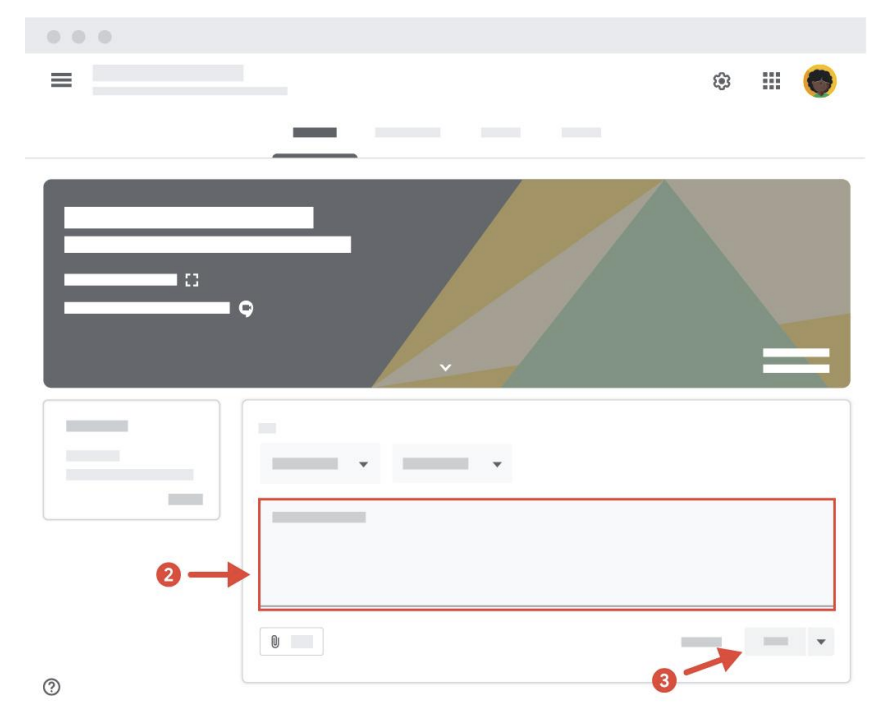
1. Click Share something with your class.  
    ![Screenshot 2024-07-30 at 10.33.08 AM.png](https://wiki.mdy.org/uploads/images/gallery/2024-07/scaled-1680-/8mOilxz4bUuBa58m-screenshot-2024-07-30-at-10-33-08-am.png)
2. The box will open up, displaying more options. The main area shown above is where you click and type in your message.
3. When ready click Post to publish your message to all the class member’s Streams. Your message will now be visible to all students.

# Posting assignments and tests in Google Classroom

<span id="bkmrk--1" style="font-weight:normal;"></span>

Posting assignments and tests in Google Classroom

<table id="bkmrk-check-out-this-45-se" style="border-collapse:collapse;width:100%;"><colgroup><col style="width:99.881%;"></col></colgroup><thead><tr><td>**Check out this 45-second screen recording - no sound needed**

</td></tr></thead></table>

<span style="font-size:12pt;font-family:Roboto, sans-serif;color:#1f1f1f;background-color:transparent;font-weight:400;font-style:normal;font-variant:normal;text-decoration:none;vertical-align:baseline;white-space:pre-wrap;"><iframe height="480" src="https://drive.google.com/file/d/1C5j28C_IAddIOEpGco6K-8EG2DVueK4r/preview" width="640"></iframe>

</span>

1. <span style="font-size:12pt;font-family:Roboto, sans-serif;color:#1f1f1f;background-color:transparent;font-weight:400;font-style:normal;font-variant:normal;text-decoration:none;vertical-align:baseline;white-space:pre-wrap;">Go to </span>[<span style="font-size:12pt;font-family:Roboto, sans-serif;color:#0b57d0;background-color:transparent;font-weight:400;font-style:normal;font-variant:normal;text-decoration:none;vertical-align:baseline;white-space:pre-wrap;">classroom.google.com</span>](https://classroom.google.com/)<span style="font-size:12pt;font-family:Roboto, sans-serif;color:#1f1f1f;background-color:transparent;font-weight:400;font-style:normal;font-variant:normal;text-decoration:none;vertical-align:baseline;white-space:pre-wrap;">.</span><span style="font-size:12pt;font-family:Roboto, sans-serif;color:#1f1f1f;background-color:transparent;font-weight:400;font-style:normal;font-variant:normal;text-decoration:none;vertical-align:baseline;white-space:pre-wrap;">  
      
    </span>
2. <span style="font-size:12pt;font-family:Roboto, sans-serif;color:#1f1f1f;background-color:transparent;font-weight:400;font-style:normal;font-variant:normal;text-decoration:none;vertical-align:baseline;white-space:pre-wrap;">Click the class → </span><span style="font-size:12pt;font-family:Roboto, sans-serif;color:#1f1f1f;background-color:transparent;font-weight:bold;font-style:normal;font-variant:normal;text-decoration:none;vertical-align:baseline;white-space:pre-wrap;">Classwork</span><span style="font-size:12pt;font-family:Roboto, sans-serif;color:#1f1f1f;background-color:transparent;font-weight:400;font-style:normal;font-variant:normal;text-decoration:none;vertical-align:baseline;white-space:pre-wrap;">.</span><span style="font-size:12pt;font-family:Roboto, sans-serif;color:#1f1f1f;background-color:transparent;font-weight:400;font-style:normal;font-variant:normal;text-decoration:none;vertical-align:baseline;white-space:pre-wrap;">  
      
    </span>
3. <span style="font-size:12pt;font-family:Roboto, sans-serif;color:#1f1f1f;background-color:transparent;font-weight:400;font-style:normal;font-variant:normal;text-decoration:none;vertical-align:baseline;white-space:pre-wrap;">At the top, click </span><span style="font-size:12pt;font-family:Roboto, sans-serif;color:#1f1f1f;background-color:transparent;font-weight:bold;font-style:normal;font-variant:normal;text-decoration:none;vertical-align:baseline;white-space:pre-wrap;">Create</span><span style="font-size:12pt;font-family:Roboto, sans-serif;color:#1f1f1f;background-color:transparent;font-weight:400;font-style:normal;font-variant:normal;text-decoration:none;vertical-align:baseline;white-space:pre-wrap;"> → </span><span style="font-size:12pt;font-family:Roboto, sans-serif;color:#1f1f1f;background-color:transparent;font-weight:bold;font-style:normal;font-variant:normal;text-decoration:none;vertical-align:baseline;white-space:pre-wrap;">Assignment</span><span style="font-size:12pt;font-family:Roboto, sans-serif;color:#1f1f1f;background-color:transparent;font-weight:400;font-style:normal;font-variant:normal;text-decoration:none;vertical-align:baseline;white-space:pre-wrap;">.</span><span style="font-size:12pt;font-family:Roboto, sans-serif;color:#1f1f1f;background-color:transparent;font-weight:400;font-style:normal;font-variant:normal;text-decoration:none;vertical-align:baseline;white-space:pre-wrap;">  
      
    </span>
4. <span style="font-size:12pt;font-family:Roboto, sans-serif;color:#1f1f1f;background-color:transparent;font-weight:400;font-style:normal;font-variant:normal;text-decoration:none;vertical-align:baseline;white-space:pre-wrap;">Enter the </span><span style="font-size:12pt;font-family:Roboto, sans-serif;color:#1f1f1f;background-color:transparent;font-weight:bold;font-style:normal;font-variant:normal;text-decoration:none;vertical-align:baseline;white-space:pre-wrap;">Title</span><span style="font-size:12pt;font-family:Roboto, sans-serif;color:#1f1f1f;background-color:transparent;font-weight:400;font-style:normal;font-variant:normal;text-decoration:none;vertical-align:baseline;white-space:pre-wrap;"> and any </span><span style="font-size:12pt;font-family:Roboto, sans-serif;color:#1f1f1f;background-color:transparent;font-weight:bold;font-style:normal;font-variant:normal;text-decoration:none;vertical-align:baseline;white-space:pre-wrap;">Instructions</span><span style="font-size:12pt;font-family:Roboto, sans-serif;color:#1f1f1f;background-color:transparent;font-weight:400;font-style:normal;font-variant:normal;text-decoration:none;vertical-align:baseline;white-space:pre-wrap;">.</span><span style="font-size:12pt;font-family:Roboto, sans-serif;color:#1f1f1f;background-color:transparent;font-weight:400;font-style:normal;font-variant:normal;text-decoration:none;vertical-align:baseline;white-space:pre-wrap;">  
      
    </span>
5. <span style="font-size:12pt;font-family:Roboto, sans-serif;color:#1f1f1f;background-color:transparent;font-weight:400;font-style:normal;font-variant:normal;text-decoration:none;vertical-align:baseline;white-space:pre-wrap;">Post to additional classes  
    </span><span style="font-size:12pt;font-family:Roboto, sans-serif;color:#1f1f1f;background-color:transparent;font-weight:400;font-style:normal;font-variant:normal;text-decoration:none;vertical-align:baseline;white-space:pre-wrap;">• Under </span><span style="font-size:12pt;font-family:Roboto, sans-serif;color:#1f1f1f;background-color:transparent;font-weight:bold;font-style:normal;font-variant:normal;text-decoration:none;vertical-align:baseline;white-space:pre-wrap;">For</span><span style="font-size:12pt;font-family:Roboto, sans-serif;color:#1f1f1f;background-color:transparent;font-weight:400;font-style:normal;font-variant:normal;text-decoration:none;vertical-align:baseline;white-space:pre-wrap;">, click the Down arrow </span><span style="font-size:12pt;font-family:Roboto, sans-serif;color:#1f1f1f;background-color:transparent;font-weight:400;font-style:normal;font-variant:normal;text-decoration:none;vertical-align:baseline;white-space:pre-wrap;"><span style="border:none;display:inline-block;overflow:hidden;width:19px;height:19px;">![Down Arrow](https://lh7-rt.googleusercontent.com/docsz/AD_4nXdpD5_VnWqZCOZXO65rgnTa51s5CxzBPXpVHC17CwH3IxW4GfIUzoI1YmnYsQlp5wtDApsU09uJ92r0wjRO9rChuEVcttTXkt-t2no5p0Q910cZc5yLYLiCo66jgiJKu-WUADjTl_wpSP4QI5uuW8POhM4?key=HMBZ8AUQXOVW6VxHNDzP3Q "Down Arrow")</span></span><span style="font-size:12pt;font-family:Roboto, sans-serif;color:#1f1f1f;background-color:transparent;font-weight:400;font-style:normal;font-variant:normal;text-decoration:none;vertical-align:baseline;white-space:pre-wrap;">→ select the class or classes you want to include.</span><span style="font-size:12pt;font-family:Roboto, sans-serif;color:#1f1f1f;background-color:transparent;font-weight:400;font-style:normal;font-variant:normal;text-decoration:none;vertical-align:baseline;white-space:pre-wrap;">  
      
    </span>
6. <span style="font-size:12pt;font-family:Roboto, sans-serif;color:#1f1f1f;background-color:transparent;font-weight:400;font-style:normal;font-variant:normal;text-decoration:none;vertical-align:baseline;white-space:pre-wrap;">Post to individual students  
    </span><span style="font-size:12pt;font-family:Roboto, sans-serif;color:#1f1f1f;background-color:transparent;font-weight:400;font-style:normal;font-variant:normal;text-decoration:none;vertical-align:baseline;white-space:pre-wrap;">• Next to </span><span style="font-size:12pt;font-family:Roboto, sans-serif;color:#1f1f1f;background-color:transparent;font-weight:bold;font-style:normal;font-variant:normal;text-decoration:none;vertical-align:baseline;white-space:pre-wrap;">All students</span><span style="font-size:12pt;font-family:Roboto, sans-serif;color:#1f1f1f;background-color:transparent;font-weight:400;font-style:normal;font-variant:normal;text-decoration:none;vertical-align:baseline;white-space:pre-wrap;">, click the Down arrow </span><span style="font-size:12pt;font-family:Roboto, sans-serif;color:#1f1f1f;background-color:transparent;font-weight:400;font-style:normal;font-variant:normal;text-decoration:none;vertical-align:baseline;white-space:pre-wrap;"><span style="border:none;display:inline-block;overflow:hidden;width:19px;height:19px;">![Down Arrow](https://lh7-rt.googleusercontent.com/docsz/AD_4nXcVzKSHuOiBdSqyO0ynI_Fky39fj0YzseHun5gPGovctZN5D1shP8bTKSiFcowBfMOYUK3c4gFo9FbwfmG020U_oEkXPm6FlRw3J4klmOy_lR0cHWhKTjOcmzOP1YaKtBR6qaj3UvWHNFsA3g0J-5BOnH8?key=HMBZ8AUQXOVW6VxHNDzP3Q "Down Arrow")</span></span><span style="font-size:12pt;font-family:Roboto, sans-serif;color:#1f1f1f;background-color:transparent;font-weight:400;font-style:normal;font-variant:normal;text-decoration:none;vertical-align:baseline;white-space:pre-wrap;">→ All students again to deselect students.  
    </span><span style="font-size:12pt;font-family:Roboto, sans-serif;color:#1f1f1f;background-color:transparent;font-weight:400;font-style:normal;font-variant:normal;text-decoration:none;vertical-align:baseline;white-space:pre-wrap;">• Click a student's name to select them.</span><span style="font-size:12pt;font-family:Roboto, sans-serif;color:#1f1f1f;background-color:transparent;font-weight:400;font-style:normal;font-variant:normal;text-decoration:none;vertical-align:baseline;white-space:pre-wrap;">  
      
    </span>
7. <span style="font-size:12pt;font-family:Roboto, sans-serif;color:#1f1f1f;background-color:transparent;font-weight:400;font-style:normal;font-variant:normal;text-decoration:none;vertical-align:baseline;white-space:pre-wrap;">Add a </span><span style="font-size:12pt;font-family:Roboto, sans-serif;color:#1f1f1f;background-color:transparent;font-weight:bold;font-style:normal;font-variant:normal;text-decoration:none;vertical-align:baseline;white-space:pre-wrap;">Grade category</span><span style="font-size:12pt;font-family:Roboto, sans-serif;color:#1f1f1f;background-color:transparent;font-weight:400;font-style:normal;font-variant:normal;text-decoration:none;vertical-align:baseline;white-space:pre-wrap;"> to organize assignments. Click the Down arrow </span><span style="font-size:12pt;font-family:Roboto, sans-serif;color:#1f1f1f;background-color:transparent;font-weight:400;font-style:normal;font-variant:normal;text-decoration:none;vertical-align:baseline;white-space:pre-wrap;"><span style="border:none;display:inline-block;overflow:hidden;width:19px;height:19px;">![Down Arrow](https://lh7-rt.googleusercontent.com/docsz/AD_4nXfNzpqkCFR2yvXb1Mu_gZqvgjZ17OB7SzrinLg83DaMZfmn0Hsm7ssvOOporoOYiwmrSSOOb5EFcUZAsvAOpvWqDLmKFalVAxR1xbtEZWaRWqFKcHu8DIEzgTekvlnZVEFL7B9xbXW0hCenDTmSBFDVhDE?key=HMBZ8AUQXOVW6VxHNDzP3Q "Down Arrow")</span></span><span style="font-size:12pt;font-family:Roboto, sans-serif;color:#1f1f1f;background-color:transparent;font-weight:400;font-style:normal;font-variant:normal;text-decoration:none;vertical-align:baseline;white-space:pre-wrap;">→ select a category from the menu.</span><span style="font-size:12pt;font-family:Roboto, sans-serif;color:#1f1f1f;background-color:transparent;font-weight:400;font-style:normal;font-variant:normal;text-decoration:none;vertical-align:baseline;white-space:pre-wrap;">  
      
    </span>
8. <span style="font-size:12pt;font-family:Roboto, sans-serif;color:#1f1f1f;background-color:transparent;font-weight:400;font-style:normal;font-variant:normal;text-decoration:none;vertical-align:baseline;white-space:pre-wrap;">Change the point value  
    </span><span style="font-size:12pt;font-family:Roboto, sans-serif;color:#1f1f1f;background-color:transparent;font-weight:400;font-style:normal;font-variant:normal;text-decoration:none;vertical-align:baseline;white-space:pre-wrap;">• Under </span><span style="font-size:12pt;font-family:Roboto, sans-serif;color:#1f1f1f;background-color:transparent;font-weight:bold;font-style:normal;font-variant:normal;text-decoration:none;vertical-align:baseline;white-space:pre-wrap;">Points</span><span style="font-size:12pt;font-family:Roboto, sans-serif;color:#1f1f1f;background-color:transparent;font-weight:400;font-style:normal;font-variant:normal;text-decoration:none;vertical-align:baseline;white-space:pre-wrap;">, click the value (by default, assignments are set at 100 points).  
    </span><span style="font-size:12pt;font-family:Roboto, sans-serif;color:#1f1f1f;background-color:transparent;font-weight:400;font-style:normal;font-variant:normal;text-decoration:none;vertical-align:baseline;white-space:pre-wrap;">• Enter a new point value or select Ungraded.</span><span style="font-size:12pt;font-family:Roboto, sans-serif;color:#1f1f1f;background-color:transparent;font-weight:400;font-style:normal;font-variant:normal;text-decoration:none;vertical-align:baseline;white-space:pre-wrap;">  
      
    </span>
9. <span style="font-size:12pt;font-family:Roboto, sans-serif;color:#1f1f1f;background-color:transparent;font-weight:400;font-style:normal;font-variant:normal;text-decoration:none;vertical-align:baseline;white-space:pre-wrap;">By default, an assignment has no due date. To set a </span><span style="font-size:12pt;font-family:Roboto, sans-serif;color:#1f1f1f;background-color:transparent;font-weight:bold;font-style:normal;font-variant:normal;text-decoration:none;vertical-align:baseline;white-space:pre-wrap;">due date</span><span style="font-size:12pt;font-family:Roboto, sans-serif;color:#1f1f1f;background-color:transparent;font-weight:400;font-style:normal;font-variant:normal;text-decoration:none;vertical-align:baseline;white-space:pre-wrap;">:  
    </span><span style="font-size:12pt;font-family:Roboto, sans-serif;color:#1f1f1f;background-color:transparent;font-weight:400;font-style:normal;font-variant:normal;text-decoration:none;vertical-align:baseline;white-space:pre-wrap;">• Under Due, click the Down arrow </span><span style="font-size:12pt;font-family:Roboto, sans-serif;color:#1f1f1f;background-color:transparent;font-weight:400;font-style:normal;font-variant:normal;text-decoration:none;vertical-align:baseline;white-space:pre-wrap;"><span style="border:none;display:inline-block;overflow:hidden;width:19px;height:19px;">![Down Arrow](https://lh7-rt.googleusercontent.com/docsz/AD_4nXfNzpqkCFR2yvXb1Mu_gZqvgjZ17OB7SzrinLg83DaMZfmn0Hsm7ssvOOporoOYiwmrSSOOb5EFcUZAsvAOpvWqDLmKFalVAxR1xbtEZWaRWqFKcHu8DIEzgTekvlnZVEFL7B9xbXW0hCenDTmSBFDVhDE?key=HMBZ8AUQXOVW6VxHNDzP3Q "Down Arrow")</span></span><span style="font-size:12pt;font-family:Roboto, sans-serif;color:#1f1f1f;background-color:transparent;font-weight:400;font-style:normal;font-variant:normal;text-decoration:none;vertical-align:baseline;white-space:pre-wrap;">.  
    </span><span style="font-size:12pt;font-family:Roboto, sans-serif;color:#1f1f1f;background-color:transparent;font-weight:400;font-style:normal;font-variant:normal;text-decoration:none;vertical-align:baseline;white-space:pre-wrap;">• Next to No due date, click the Down arrow </span><span style="font-size:12pt;font-family:Roboto, sans-serif;color:#1f1f1f;background-color:transparent;font-weight:400;font-style:normal;font-variant:normal;text-decoration:none;vertical-align:baseline;white-space:pre-wrap;"><span style="border:none;display:inline-block;overflow:hidden;width:19px;height:19px;">![Down Arrow](https://lh7-rt.googleusercontent.com/docsz/AD_4nXfNzpqkCFR2yvXb1Mu_gZqvgjZ17OB7SzrinLg83DaMZfmn0Hsm7ssvOOporoOYiwmrSSOOb5EFcUZAsvAOpvWqDLmKFalVAxR1xbtEZWaRWqFKcHu8DIEzgTekvlnZVEFL7B9xbXW0hCenDTmSBFDVhDE?key=HMBZ8AUQXOVW6VxHNDzP3Q "Down Arrow")</span></span><span style="font-size:12pt;font-family:Roboto, sans-serif;color:#1f1f1f;background-color:transparent;font-weight:400;font-style:normal;font-variant:normal;text-decoration:none;vertical-align:baseline;white-space:pre-wrap;">.  
    </span><span style="font-size:12pt;font-family:Roboto, sans-serif;color:#1f1f1f;background-color:transparent;font-weight:400;font-style:normal;font-variant:normal;text-decoration:none;vertical-align:baseline;white-space:pre-wrap;">• Click a date on the calendar.</span><span style="font-size:12pt;font-family:Roboto, sans-serif;color:#1f1f1f;background-color:transparent;font-weight:400;font-style:normal;font-variant:normal;text-decoration:none;vertical-align:baseline;white-space:pre-wrap;">  
      
    </span>
10. <span style="font-size:12pt;font-family:Roboto, sans-serif;color:#1f1f1f;background-color:transparent;font-weight:400;font-style:normal;font-variant:normal;text-decoration:none;vertical-align:baseline;white-space:pre-wrap;">Add a </span><span style="font-size:12pt;font-family:Roboto, sans-serif;color:#1f1f1f;background-color:transparent;font-weight:bold;font-style:normal;font-variant:normal;text-decoration:none;vertical-align:baseline;white-space:pre-wrap;">Topic</span><span style="font-size:12pt;font-family:Roboto, sans-serif;color:#1f1f1f;background-color:transparent;font-weight:400;font-style:normal;font-variant:normal;text-decoration:none;vertical-align:baseline;white-space:pre-wrap;"> to group similar assignments and materials: Under Topic, click the Down arrow </span><span style="font-size:12pt;font-family:Roboto, sans-serif;color:#1f1f1f;background-color:transparent;font-weight:400;font-style:normal;font-variant:normal;text-decoration:none;vertical-align:baseline;white-space:pre-wrap;"><span style="border:none;display:inline-block;overflow:hidden;width:19px;height:19px;">![Down Arrow](https://lh7-rt.googleusercontent.com/docsz/AD_4nXfNzpqkCFR2yvXb1Mu_gZqvgjZ17OB7SzrinLg83DaMZfmn0Hsm7ssvOOporoOYiwmrSSOOb5EFcUZAsvAOpvWqDLmKFalVAxR1xbtEZWaRWqFKcHu8DIEzgTekvlnZVEFL7B9xbXW0hCenDTmSBFDVhDE?key=HMBZ8AUQXOVW6VxHNDzP3Q "Down Arrow")</span></span><span style="font-size:12pt;font-family:Roboto, sans-serif;color:#1f1f1f;background-color:transparent;font-weight:400;font-style:normal;font-variant:normal;text-decoration:none;vertical-align:baseline;white-space:pre-wrap;">.  
    </span><span style="font-size:12pt;font-family:Roboto, sans-serif;color:#1f1f1f;background-color:transparent;font-weight:400;font-style:normal;font-variant:normal;text-decoration:none;vertical-align:baseline;white-space:pre-wrap;">• To create a topic, click </span><span style="font-size:12pt;font-family:Roboto, sans-serif;color:#1f1f1f;background-color:transparent;font-weight:bold;font-style:normal;font-variant:normal;text-decoration:none;vertical-align:baseline;white-space:pre-wrap;">Create topic</span><span style="font-size:12pt;font-family:Roboto, sans-serif;color:#1f1f1f;background-color:transparent;font-weight:400;font-style:normal;font-variant:normal;text-decoration:none;vertical-align:baseline;white-space:pre-wrap;"> and enter a topic name.  
    </span><span style="font-size:12pt;font-family:Roboto, sans-serif;color:#1f1f1f;background-color:transparent;font-weight:400;font-style:normal;font-variant:normal;text-decoration:none;vertical-align:baseline;white-space:pre-wrap;">• Or, click a topic in the list to select it.</span><span style="font-size:12pt;font-family:Roboto, sans-serif;color:#1f1f1f;background-color:transparent;font-weight:400;font-style:normal;font-variant:normal;text-decoration:none;vertical-align:baseline;white-space:pre-wrap;">  
      
    </span>
11. <span style="font-size:12pt;font-family:Roboto, sans-serif;color:#1f1f1f;background-color:transparent;font-weight:400;font-style:normal;font-variant:normal;text-decoration:none;vertical-align:baseline;white-space:pre-wrap;"> Add </span><span style="font-size:12pt;font-family:Roboto, sans-serif;color:#1f1f1f;background-color:transparent;font-weight:bold;font-style:normal;font-variant:normal;text-decoration:none;vertical-align:baseline;white-space:pre-wrap;">Attachments</span><span style="font-size:12pt;font-family:Roboto, sans-serif;color:#1f1f1f;background-color:transparent;font-weight:400;font-style:normal;font-variant:normal;text-decoration:none;vertical-align:baseline;white-space:pre-wrap;">: click </span><span style="font-size:12pt;font-family:Roboto, sans-serif;color:#1f1f1f;background-color:transparent;font-weight:bold;font-style:normal;font-variant:normal;text-decoration:none;vertical-align:baseline;white-space:pre-wrap;">Add</span><span style="font-size:12pt;font-family:Roboto, sans-serif;color:#1f1f1f;background-color:transparent;font-weight:400;font-style:normal;font-variant:normal;text-decoration:none;vertical-align:baseline;white-space:pre-wrap;"> → choose an option:</span><span style="font-size:12pt;font-family:Roboto, sans-serif;color:#1f1f1f;background-color:transparent;font-weight:400;font-style:normal;font-variant:normal;text-decoration:none;vertical-align:baseline;white-space:pre-wrap;">  
    </span><span style="font-size:12pt;font-family:Roboto, sans-serif;color:#1f1f1f;background-color:transparent;font-weight:400;font-style:normal;font-variant:normal;text-decoration:none;vertical-align:baseline;white-space:pre-wrap;"><span class="Apple-tab-span" style="white-space:pre;"> </span></span><span style="font-size:12pt;font-family:Roboto, sans-serif;color:#1f1f1f;background-color:transparent;font-weight:400;font-style:normal;font-variant:normal;text-decoration:none;vertical-align:baseline;white-space:pre-wrap;"><span style="border:none;display:inline-block;overflow:hidden;width:174px;height:45px;">![AD_4nXe4CqLUjnY-ahOK_6Lds8SPz_11h1hsUiJyJRK4aQhjXSd8rCog9OukcQsBxBHex5CXumbEho0A4w_UbC2fqWiY22Fp5F0UeA0yh7u9b_usX-N2iBHcXjfgTjUUcmBnA8B8DeIzu4u3QPhiWpsdVs3Oy9w?key=HMBZ8AUQXOVW6VxHNDzP3Q](https://lh7-rt.googleusercontent.com/docsz/AD_4nXe4CqLUjnY-ahOK_6Lds8SPz_11h1hsUiJyJRK4aQhjXSd8rCog9OukcQsBxBHex5CXumbEho0A4w_UbC2fqWiY22Fp5F0UeA0yh7u9b_usX-N2iBHcXjfgTjUUcmBnA8B8DeIzu4u3QPhiWpsdVs3Oy9w?key=HMBZ8AUQXOVW6VxHNDzP3Q)</span></span><span style="font-size:12pt;font-family:Roboto, sans-serif;color:#1f1f1f;background-color:transparent;font-weight:400;font-style:normal;font-variant:normal;text-decoration:none;vertical-align:baseline;white-space:pre-wrap;">  
    • File  
    </span><span style="font-size:12pt;font-family:Roboto, sans-serif;color:#1f1f1f;background-color:transparent;font-weight:400;font-style:normal;font-variant:normal;text-decoration:none;vertical-align:baseline;white-space:pre-wrap;">• Google Drive (Google Drive items are view-only to students).  
    </span><span style="font-size:12pt;font-family:Roboto, sans-serif;color:#1f1f1f;background-color:transparent;font-weight:400;font-style:normal;font-variant:normal;text-decoration:none;vertical-align:baseline;white-space:pre-wrap;">• YouTube  
    </span><span style="font-size:12pt;font-family:Roboto, sans-serif;color:#1f1f1f;background-color:transparent;font-weight:400;font-style:normal;font-variant:normal;text-decoration:none;vertical-align:baseline;white-space:pre-wrap;">• Link</span><span style="font-size:12pt;font-family:Roboto, sans-serif;color:#1f1f1f;background-color:transparent;font-weight:400;font-style:normal;font-variant:normal;text-decoration:none;vertical-align:baseline;white-space:pre-wrap;">  
      
    </span>
12. <span style="font-size:12pt;font-family:Roboto, sans-serif;color:#1f1f1f;background-color:transparent;font-weight:400;font-style:normal;font-variant:normal;text-decoration:none;vertical-align:baseline;white-space:pre-wrap;">You can post an assignment immediately, or schedule it to post later.  
    </span><span style="font-size:12pt;font-family:Roboto, sans-serif;color:#1f1f1f;background-color:transparent;font-weight:400;font-style:normal;font-variant:normal;text-decoration:none;vertical-align:baseline;white-space:pre-wrap;">• Click </span><span style="font-size:12pt;font-family:Roboto, sans-serif;color:#1f1f1f;background-color:transparent;font-weight:bold;font-style:normal;font-variant:normal;text-decoration:none;vertical-align:baseline;white-space:pre-wrap;">Assign</span><span style="font-size:12pt;font-family:Roboto, sans-serif;color:#1f1f1f;background-color:transparent;font-weight:400;font-style:normal;font-variant:normal;text-decoration:none;vertical-align:baseline;white-space:pre-wrap;"> to immediately post the assignment.  
    </span><span style="font-size:12pt;font-family:Roboto, sans-serif;color:#1f1f1f;background-color:transparent;font-weight:bold;font-style:normal;font-variant:normal;text-decoration:none;vertical-align:baseline;white-space:pre-wrap;">• Schedule</span><span style="font-size:12pt;font-family:Roboto, sans-serif;color:#1f1f1f;background-color:transparent;font-weight:400;font-style:normal;font-variant:normal;text-decoration:none;vertical-align:baseline;white-space:pre-wrap;"> the assignment to post later</span>

# Using Google Calendar with Google Classroom

**Using Google Calendar with Google Classroom**

<table id="bkmrk-check-out-this-54-se" style="border-collapse:collapse;width:100%;"><colgroup><col style="width:99.881%;"></col></colgroup><thead><tr><td class="align-center">**Check out this 54-second screen recording - no sound needed**</td></tr></thead></table>

<iframe height="480" src="https://drive.google.com/file/d/1X19OU82trQqLOALusSkpycXkAyJhFoM6/preview" width="640"></iframe>

<span id="bkmrk--2" style="font-weight:normal;"></span>

1. <span style="font-size:12pt;font-family:Roboto, sans-serif;color:#1f1f1f;background-color:transparent;font-weight:400;font-style:normal;font-variant:normal;text-decoration:none;vertical-align:baseline;white-space:pre-wrap;">Go to </span>[<span style="font-size:12pt;font-family:Roboto, sans-serif;color:#0b57d0;background-color:transparent;font-weight:400;font-style:normal;font-variant:normal;text-decoration:none;vertical-align:baseline;white-space:pre-wrap;">classroom.google.com</span>](https://classroom.google.com/)<span style="font-size:12pt;font-family:Roboto, sans-serif;color:#1f1f1f;background-color:transparent;font-weight:400;font-style:normal;font-variant:normal;text-decoration:none;vertical-align:baseline;white-space:pre-wrap;">.</span><span style="font-size:12pt;font-family:Roboto, sans-serif;color:#1f1f1f;background-color:transparent;font-weight:400;font-style:normal;font-variant:normal;text-decoration:none;vertical-align:baseline;white-space:pre-wrap;">  
      
    </span>
2. <span style="font-size:12pt;font-family:Roboto, sans-serif;color:#1f1f1f;background-color:transparent;font-weight:400;font-style:normal;font-variant:normal;text-decoration:none;vertical-align:baseline;white-space:pre-wrap;">Click the class → </span><span style="font-size:12pt;font-family:Roboto, sans-serif;color:#1f1f1f;background-color:transparent;font-weight:bold;font-style:normal;font-variant:normal;text-decoration:none;vertical-align:baseline;white-space:pre-wrap;">Classwork</span><span style="font-size:12pt;font-family:Roboto, sans-serif;color:#1f1f1f;background-color:transparent;font-weight:400;font-style:normal;font-variant:normal;text-decoration:none;vertical-align:baseline;white-space:pre-wrap;">.</span><span style="font-size:12pt;font-family:Roboto, sans-serif;color:#1f1f1f;background-color:transparent;font-weight:400;font-style:normal;font-variant:normal;text-decoration:none;vertical-align:baseline;white-space:pre-wrap;">  
      
    </span>
3. <span style="font-size:12pt;font-family:Roboto, sans-serif;color:#1f1f1f;background-color:transparent;font-weight:400;font-style:normal;font-variant:normal;text-decoration:none;vertical-align:baseline;white-space:pre-wrap;">At the top, click </span><span style="font-size:12pt;font-family:Roboto, sans-serif;color:#1f1f1f;background-color:transparent;font-weight:bold;font-style:normal;font-variant:normal;text-decoration:none;vertical-align:baseline;white-space:pre-wrap;">Google Calendar</span><span style="font-size:12pt;font-family:Roboto, sans-serif;color:#1f1f1f;background-color:transparent;font-weight:400;font-style:normal;font-variant:normal;text-decoration:none;vertical-align:baseline;white-space:pre-wrap;">. This will open in a new tab.</span><span style="font-size:12pt;font-family:Roboto, sans-serif;color:#1f1f1f;background-color:transparent;font-weight:400;font-style:normal;font-variant:normal;text-decoration:none;vertical-align:baseline;white-space:pre-wrap;">  
      
    </span>
4. <span style="font-size:12pt;font-family:Roboto, sans-serif;color:#1f1f1f;background-color:transparent;font-weight:400;font-style:normal;font-variant:normal;text-decoration:none;vertical-align:baseline;white-space:pre-wrap;">Click on the event’s </span><span style="font-size:12pt;font-family:Roboto, sans-serif;color:#1f1f1f;background-color:transparent;font-weight:bold;font-style:normal;font-variant:normal;text-decoration:none;vertical-align:baseline;white-space:pre-wrap;">Date</span><span style="font-size:12pt;font-family:Roboto, sans-serif;color:#1f1f1f;background-color:transparent;font-weight:400;font-style:normal;font-variant:normal;text-decoration:none;vertical-align:baseline;white-space:pre-wrap;">.</span><span style="font-size:12pt;font-family:Roboto, sans-serif;color:#1f1f1f;background-color:transparent;font-weight:400;font-style:normal;font-variant:normal;text-decoration:none;vertical-align:baseline;white-space:pre-wrap;">  
      
    </span>
5. <span style="font-size:12pt;font-family:Roboto, sans-serif;color:#1f1f1f;background-color:transparent;font-weight:400;font-style:normal;font-variant:normal;text-decoration:none;vertical-align:baseline;white-space:pre-wrap;">Enter the </span><span style="font-size:12pt;font-family:Roboto, sans-serif;color:#1f1f1f;background-color:transparent;font-weight:bold;font-style:normal;font-variant:normal;text-decoration:none;vertical-align:baseline;white-space:pre-wrap;">Title</span><span style="font-size:12pt;font-family:Roboto, sans-serif;color:#1f1f1f;background-color:transparent;font-weight:400;font-style:normal;font-variant:normal;text-decoration:none;vertical-align:baseline;white-space:pre-wrap;">.  
      
    </span>
6. <span style="font-size:12pt;font-family:Roboto, sans-serif;color:#1f1f1f;background-color:transparent;font-weight:400;font-style:normal;font-variant:normal;text-decoration:none;vertical-align:baseline;white-space:pre-wrap;">Next to the </span><span style="font-size:12pt;font-family:Roboto, sans-serif;color:#1f1f1f;background-color:transparent;font-weight:bold;font-style:normal;font-variant:normal;text-decoration:none;vertical-align:baseline;white-space:pre-wrap;">calendar name</span><span style="font-size:12pt;font-family:Roboto, sans-serif;color:#1f1f1f;background-color:transparent;font-weight:400;font-style:normal;font-variant:normal;text-decoration:none;vertical-align:baseline;white-space:pre-wrap;"> </span><span style="font-size:12pt;font-family:Roboto, sans-serif;color:#1f1f1f;background-color:transparent;font-weight:400;font-style:normal;font-variant:normal;text-decoration:none;vertical-align:baseline;white-space:pre-wrap;"><span style="border:none;display:inline-block;overflow:hidden;width:24px;height:26px;">![AD_4nXfpsCsgBRCE0e9Iuf7bJQREaKhw5ZTIL-uYHYCM2EJ1opX8WjE6b-Du78w3WE-D5caw8N1Dtt4WF2r2Z9cwVFs5zTBH37J288KKsx530MSQ_4QylXo2mRdNRbBzFYWOZX0JShbfnNcj4VWpZcQrqsbwpwk?key=O7rX3JhzC5KkAOtDgbEXvg](https://lh7-rt.googleusercontent.com/docsz/AD_4nXfpsCsgBRCE0e9Iuf7bJQREaKhw5ZTIL-uYHYCM2EJ1opX8WjE6b-Du78w3WE-D5caw8N1Dtt4WF2r2Z9cwVFs5zTBH37J288KKsx530MSQ_4QylXo2mRdNRbBzFYWOZX0JShbfnNcj4VWpZcQrqsbwpwk?key=O7rX3JhzC5KkAOtDgbEXvg)</span></span><span style="font-size:12pt;font-family:Roboto, sans-serif;color:#1f1f1f;background-color:transparent;font-weight:400;font-style:normal;font-variant:normal;text-decoration:none;vertical-align:baseline;white-space:pre-wrap;">, use the dropdown menu to change the calendar’s name to the name of your Google Classroom class.</span><span style="font-size:12pt;font-family:Roboto, sans-serif;color:#1f1f1f;background-color:transparent;font-weight:400;font-style:normal;font-variant:normal;text-decoration:none;vertical-align:baseline;white-space:pre-wrap;">  
      
    </span>
7. <span style="font-size:12pt;font-family:Roboto, sans-serif;color:#1f1f1f;background-color:transparent;font-weight:400;font-style:normal;font-variant:normal;text-decoration:none;vertical-align:baseline;white-space:pre-wrap;">Click </span><span style="font-size:12pt;font-family:Roboto, sans-serif;color:#1f1f1f;background-color:transparent;font-weight:bold;font-style:normal;font-variant:normal;text-decoration:none;vertical-align:baseline;white-space:pre-wrap;">Save</span><span style="font-size:12pt;font-family:Roboto, sans-serif;color:#1f1f1f;background-color:transparent;font-weight:400;font-style:normal;font-variant:normal;text-decoration:none;vertical-align:baseline;white-space:pre-wrap;">.</span><span style="font-size:12pt;font-family:Roboto, sans-serif;color:#1f1f1f;background-color:transparent;font-weight:400;font-style:normal;font-variant:normal;text-decoration:none;vertical-align:baseline;white-space:pre-wrap;">  
      
    </span>
8. <span style="font-size:12pt;font-family:Roboto, sans-serif;color:#1f1f1f;background-color:transparent;font-weight:bold;font-style:normal;font-variant:normal;text-decoration:none;vertical-align:baseline;white-space:pre-wrap;">Copy</span><span style="font-size:12pt;font-family:Roboto, sans-serif;color:#1f1f1f;background-color:transparent;font-weight:400;font-style:normal;font-variant:normal;text-decoration:none;vertical-align:baseline;white-space:pre-wrap;"> the event to other classes.  
    </span><span style="font-size:12pt;font-family:Roboto, sans-serif;color:#1f1f1f;background-color:transparent;font-weight:400;font-style:normal;font-variant:normal;text-decoration:none;vertical-align:baseline;white-space:pre-wrap;">• a. Click the event’s name and then the 3 dots </span><span style="font-size:12pt;font-family:Roboto, sans-serif;color:#1f1f1f;background-color:transparent;font-weight:400;font-style:normal;font-variant:normal;text-decoration:none;vertical-align:baseline;white-space:pre-wrap;"><span style="border:none;display:inline-block;overflow:hidden;width:20px;height:29px;">![AD_4nXdPAPrm-FvzKESzCBWowefPsBZG3DHmmHxs2IBnfTH2ZnT52acaE7x8W1Pksp3lk8ZhXs7eZi_cfFOGfKfkGTom6o3njGwe5eWeiWmQuk48Ips4gZw9bkFAXS7kr2TvIHXKnf6v5lifH60xZHzNEwtzwec?key=O7rX3JhzC5KkAOtDgbEXvg](https://lh7-rt.googleusercontent.com/docsz/AD_4nXdPAPrm-FvzKESzCBWowefPsBZG3DHmmHxs2IBnfTH2ZnT52acaE7x8W1Pksp3lk8ZhXs7eZi_cfFOGfKfkGTom6o3njGwe5eWeiWmQuk48Ips4gZw9bkFAXS7kr2TvIHXKnf6v5lifH60xZHzNEwtzwec?key=O7rX3JhzC5KkAOtDgbEXvg)</span></span><span style="font-size:12pt;font-family:Roboto, sans-serif;color:#1f1f1f;background-color:transparent;font-weight:400;font-style:normal;font-variant:normal;text-decoration:none;vertical-align:baseline;white-space:pre-wrap;">.  
    </span><span style="font-size:12pt;font-family:Roboto, sans-serif;color:#1f1f1f;background-color:transparent;font-weight:400;font-style:normal;font-variant:normal;text-decoration:none;vertical-align:baseline;white-space:pre-wrap;">• b. Click one of the other classrooms from the list.  
    </span><span style="font-size:12pt;font-family:Roboto, sans-serif;color:#1f1f1f;background-color:transparent;font-weight:400;font-style:normal;font-variant:normal;text-decoration:none;vertical-align:baseline;white-space:pre-wrap;">• c. Click </span><span style="font-size:12pt;font-family:Roboto, sans-serif;color:#1f1f1f;background-color:transparent;font-weight:bold;font-style:normal;font-variant:normal;text-decoration:none;vertical-align:baseline;white-space:pre-wrap;">Save</span><span style="font-size:12pt;font-family:Roboto, sans-serif;color:#1f1f1f;background-color:transparent;font-weight:400;font-style:normal;font-variant:normal;text-decoration:none;vertical-align:baseline;white-space:pre-wrap;">.  
    </span><span style="font-size:12pt;font-family:Roboto, sans-serif;color:#1f1f1f;background-color:transparent;font-weight:400;font-style:normal;font-variant:normal;text-decoration:none;vertical-align:baseline;white-space:pre-wrap;">• d. Repeat as necessary.</span><span style="font-size:12pt;font-family:Roboto, sans-serif;color:#1f1f1f;background-color:transparent;font-weight:400;font-style:normal;font-variant:normal;text-decoration:none;vertical-align:baseline;white-space:pre-wrap;">  
      
    </span>
9. <span style="font-size:12pt;font-family:Roboto, sans-serif;color:#1f1f1f;background-color:transparent;font-weight:400;font-style:normal;font-variant:normal;text-decoration:none;vertical-align:baseline;white-space:pre-wrap;">Copy the event to other classes with a different date:  
    </span><span style="font-size:12pt;font-family:Roboto, sans-serif;color:#1f1f1f;background-color:transparent;font-weight:400;font-style:normal;font-variant:normal;text-decoration:none;vertical-align:baseline;white-space:pre-wrap;">• a. Follow the steps above (8a and 8b).  
    </span><span style="font-size:12pt;font-family:Roboto, sans-serif;color:#1f1f1f;background-color:transparent;font-weight:400;font-style:normal;font-variant:normal;text-decoration:none;vertical-align:baseline;white-space:pre-wrap;">• b. Choose a different date.  
    </span><span style="font-size:12pt;font-family:Roboto, sans-serif;color:#1f1f1f;background-color:transparent;font-weight:400;font-style:normal;font-variant:normal;text-decoration:none;vertical-align:baseline;white-space:pre-wrap;">• c. Click </span><span style="font-size:12pt;font-family:Roboto, sans-serif;color:#1f1f1f;background-color:transparent;font-weight:bold;font-style:normal;font-variant:normal;text-decoration:none;vertical-align:baseline;white-space:pre-wrap;">Save</span><span style="font-size:12pt;font-family:Roboto, sans-serif;color:#1f1f1f;background-color:transparent;font-weight:400;font-style:normal;font-variant:normal;text-decoration:none;vertical-align:baseline;white-space:pre-wrap;">.</span>

# Restrict Students from Commenting on Stream

Restrict students' ability to comment on the Stream by changing a Stream setting (this has to be done for each class).

1. Go to <span class="il">Google</span> <span class="il">Classroom  
      
      
    </span>
2. Select a class
3. Click the settings gear in the top right corner  
    ![Screenshot 2023-10-23 at 4.19.50 PM.png](https://mail.google.com/mail/u/0?ui=2&ik=54df69527e&attid=0.2&permmsgid=msg-f:1780593922745385276&th=18b5f0bd1e75413c&view=fimg&fur=ip&sz=s0-l75-ft&attbid=ANGjdJ9Nt_T9u_PNVMq5YemRxAP4P5v4Q8ze4r3EdMDWCD7GncXuOnusI1wWD68X-WgfE05G6mhXkVfew9D8iGC_gsYsZNJ0u9iPQraMwTJq8j9lu8GNTUYdcK0Btb4&disp=emb&realattid=ii_lo3cuf9g2)
4. Scroll down to Stream (under the General section)
5. Change the setting next to Stream. Choose either "Students can only <span class="il">comment</span>" or "Only teachers can post or <span class="il">comment</span>). Do **<u>not</u>** leave it as "Students can post and <span class="il">comment</span> - this is how they're accessing YouTube" \**\*See note below*  
    ![Screenshot 2023-10-23 at 4.21.46 PM.png](https://mail.google.com/mail/u/0?ui=2&ik=54df69527e&attid=0.1&permmsgid=msg-f:1780593922745385276&th=18b5f0bd1e75413c&view=fimg&fur=ip&sz=s0-l75-ft&attbid=ANGjdJ_tlRK05X0wMGD-0iEZeQnhDNEj1uykDjeqetQzp9lk03rVN9_yIItgAuEVPJU6_qHwbOYLdD98g1d6JJ1LxkQ9sR33B-GCiLKS0dLJiobAd39s0RyZVNUXb1w&disp=emb&realattid=ii_lo3cfqs61)
6. Click Save in the top right corner
7. Repeat this for each <span class="il">Google</span> <span class="il">Classroom</span>

<div id="bkmrk-%2A%2Athis-setting-affec">**This setting affects the announcements area of your <span class="il">Google</span> <span class="il">Classroom</span> page. If you post announcements and want students to <span class="il">comment</span> on them, choose the middle option. If you don't use this feature, limit it to only teachers who can post or <span class="il">comment</span>.</div>