# How to Utilize Zoom for Parent-Teacher Conferences
####
##### **Step one: Schedule the Meeting**
1. Navigate to [https://mdyhs-net.zoom.us](https://mdyhs-net.zoom.us) in your web browser
2. Click **Sign In,** and sign in using your MDYHS email account.
3. Click on [](https://mdyhs-net.zoom.us/meeting/schedule)
4. Name the meeting Parent-Teacher Conferences under the **Topic** field
5. Check the box next to **Recurring Meeting**. Under **Recurrence** select the option No Fixed Time. You will use this one meeting for both Parent-Teacher Conferences
6. Next to Meeting ID, select your **Personal Meeting ID.**
7. Set the following options under Security
- Passcode: **Unchecked**
- Waiting Room: **Checked**
- Require authentication to join: **Anyone with a Zoom account**
8. Click Save
##### **Step two: Starting the meeting**
1. Navigate to [https://mdyhs-net.zoom.us](https://mdyhs-net.zoom.us) in your web browser
2. Click **Sign In,** and sign in using your MDYHS email account.
3. Once signed in, you'll see your Parent-Teacher Conferences meeting on the page. Hover over it, and click **Start**
4. Click **Open Zoom Meetings** on the popup. Zoom will now load.
##### **Step three: Securing the meeting**
1. Under the **Security** button on the bottom of the Zoom window, turn the following options on, all other options should remain off:
- Enable Waiting Room
- Unmute Themselves
- Start Video
2. Click on the **Participants** button on the bottom of the Zoom window. This will bring up the Participants pane. Click the three dots in the lower right corner of the Participants pane and turn the following options on, all other options should remain off
- Allow Participants to Unmute Themselves
- Play sound when someone joins or leaves
- Enable Waiting Room
##### **Step four: Using Zoom once conferences begin**
For a short Waiting Room tutorial, please watch [this video](https://www.youtube.com/watch?v=ySas2Rgi6yA)
1. Once parents join your meeting, they'll enter the waiting room. You'll see all of your participants in the waiting room. You must have your participants pane open to view the waiting room. Click on **Admit** next to the parent you are ready to conference with, or click **Admit all** to admit all parents that are in the waiting room. [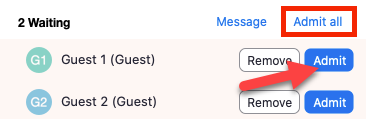](https://wiki.mdy.org/uploads/images/gallery/2021-11/vEqtU0GEVyYVfO0H-image-1635884949966.png)
2. Once you are ready to move on to the next parent, if the current parent hasn't yet left the meeting you can send them back to the waiting room by clicking **More** and clicking **Put in Waiting Room**.
Please do not admit the next meeting slot's parents until you have removed all of the prior parents to the waiting room.
**Once every 30 minutes or so, you must end the Zoom meeting, and restart it,** Zoom has implemented a 40 minute meeting limit. If you end the meeting, and restart it, it will reset the timer. Follow the instructions under **step two** to restart the meeting.